Zoom, Meet, Notion: Match Your Software to Meeting Needs
"The meeting didn't fail because of the topic; it failed because the tool didn't match the task."
Stop treating video calls as mere digital hangouts. To turn a conversation into a result, you must match your software to your specific objective.
Key Takeaways: * The "best" tool is determined by the meeting's goal: presence, collaboration, or documentation. * Software should facilitate the outcome, not act as a technical bottleneck. * For maximum efficiency, pair a communication tool (Zoom/Meet) with a documentation hub (Notion).

Why Your Current Video Conferencing Setup Might Be Failing Your Productivity
The clock on the wall in a quiet home office reads 2:15 PM on a Tuesday in 2026. You are staring at a screen, trying to find a specific file while three people wait for you to share your screen.
The audio cuts out for a second, and you spend the next five minutes troubleshooting a connection instead of discussing the project timeline.
This is the "bottleneck effect." Most professionals treat video conferencing as a way to simply "be present" on screen. However, presence is not productivity.
If you spend your entire meeting wrestling with interface complexity or searching for lost notes, you aren't working; you are just managing software.
To fix this, you must categorize your meetings into a spectrum of needs: * Quick Syncs: Low-friction, high-speed check-ins. * Deep Dives: Complex problem-solving requiring screen sharing or heavy data review. * Brainstorming Sessions: High-energy, collaborative creative work.
Choosing the wrong tool for these categories leads to "meeting fatigue," where the mental energy required to navigate the software drains the energy needed for the actual work.
But setting the right category is only half the battle; you still have to pick the right engine.
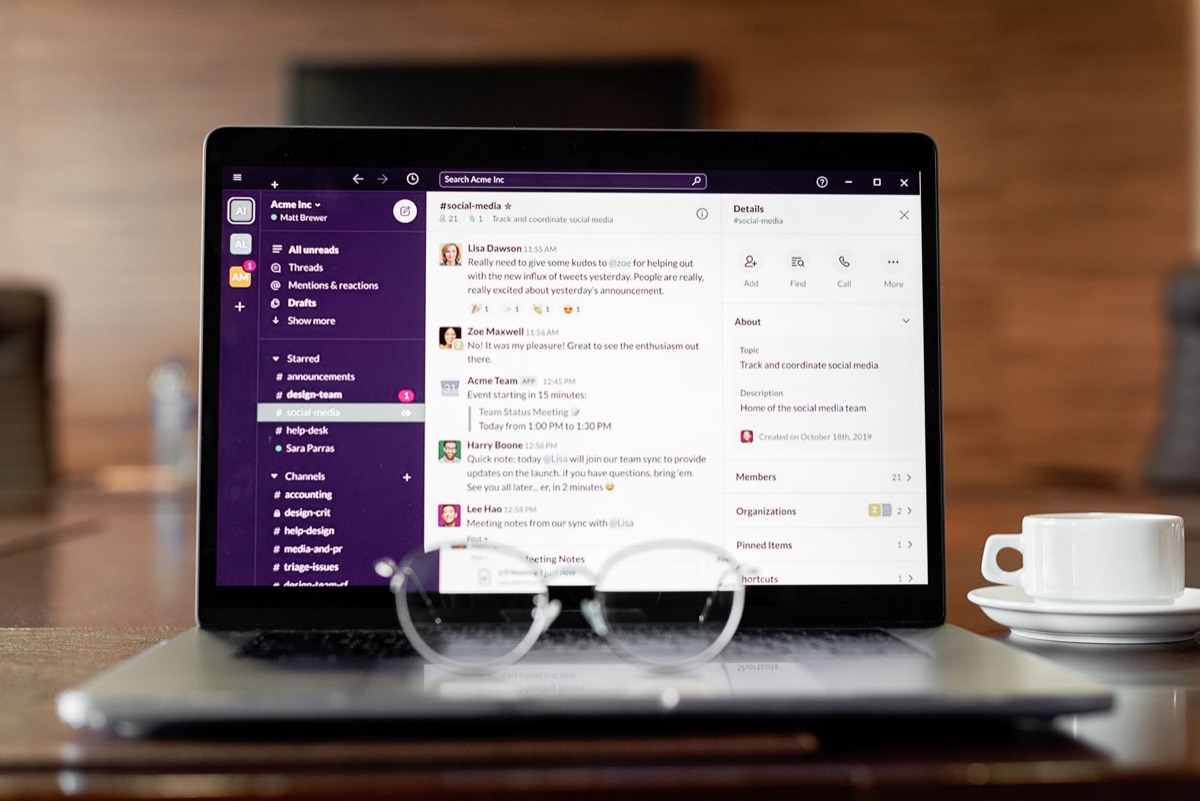
Can Zoom deliver the best high-fidelity interaction? A brightly lit conference room in a downtown high-rise is empty, but the screen is active. A presenter is walking a group of twenty stakeholders through a complex architectural render.
The movement is fluid, the high-definition video captures every detail, and the breakout rooms allow small groups to pivot to sub-tasks instantly.
Zoom is designed for high-fidelity interaction. It excels when the visual quality of a presentation or the ability to manage large groups is the priority. It is the gold standard of "one-to-many" or "structured group" communication.
The Presenter’s Workflow: 1. Set the Stage: Use the "Waiting Room" feature to manage entry and prevent interruptions. 2. Control the Flow: Utilize "Breakout Rooms" to split a large group into smaller working units for 15 minutes of focused work. 3.
Share the Vision: Use advanced screen-sharing settings to optimize video clips or specific application windows. 4. Capture the Moment: Record the session to the cloud for those who could not attend.
The Limitation Check: Zoom can feel heavy for a simple two-minute "Are you there?" check-in. It often requires more intentional setup than its competitors, and if you aren't using its advanced features, you are essentially paying for a luxury sedan to drive to the mailbox.
Pricing Context: While the free version offers basic functionality, it often imposes time limits on group calls. In 2025, we saw many teams transition to paid tiers to unlock professional-grade features—like larger capacities and extended meeting lengths—necessary for business scaling.
However, what happens when you don't need a high-rise presentation, but rather a seamless workflow?
Does Google Meet integrate perfectly with my ecosystem? A designer sits at a coffee shop in Seattle, wearing headphones. They join a meeting link directly from a Google Calendar invite. Without opening a new app or downloading a heavy client, they are instantly in a video call, with a shared Google Doc already open in another tab.
Google Meet is built for the user who lives within the Google Workspace ecosystem. It is designed for seamlessness and accessibility. Because it runs primarily in the browser, it removes the "installation friction" that often plagues remote teams.
The Collaborator’s Workflow: 1. Instant Access: Join via a single click from a Google Calendar event or a Gmail interface. 2. Parallel Work: Open a shared Google Doc or Sheet alongside the Meet window. 3.
Live Co-editing: While the video call provides the "voice," the Google Doc provides the "workspace." Participants can type, edit, and refine ideas in real-time while discussing them. 4.
Seamless Handoff: Use the chat and integrated file-sharing to move assets instantly within the Google Drive environment.
The Limitation Check: While highly efficient for document-heavy work, Meet can lack the advanced presentation controls and deep breakout-room sophistication found in Zoom. It is a tool for "doing" rather than "presenting."
Scaling Context: Google Meet scales effortlessly. Because it is web-based, it works across almost any device with a browser, making it highly accessible for global teams with varying hardware.
But even the smoothest call leaves behind a void once the window is closed.

Notion – The Documentation & Action Hub
The meeting has ended. The video call window is closed. But the work is just beginning. A project manager opens a clean, minimalist workspace on their laptop. They aren't looking at a video feed; they are looking at a structured database of tasks, decisions, and deadlines.
It is vital to understand that Notion is not a video conferencing tool. You cannot "hold a meeting" inside Notion in the way you do in Zoom. However, Notion is the superior *follow-through* tool. It is where the "ghost" of a meeting becomes a tangible reality.
The Organizer’s Workflow: 1. Pre-Meeting Setup: Create a dedicated "Meeting Notes" template in Notion. Include sections for Agenda, Attendees, and Discussion Points. 2.
Live Documentation: During the call (via Zoom or Meet), one person acts as the scribe, typing live into the Notion page. This ensures everyone sees the same "truth" in real-time. 3.
The Action Pivot: Immediately after the discussion, convert notes into "Action Items" using Notion's checkbox or database properties. 4. Permanent Record: Assign tasks to specific team members and set due dates within the same page.
The Integration Gap: Because Notion is a text-and-data-based platform, it cannot replace the real-time audio/video capabilities of a meeting tool. It requires a partner.
The Power Move: The most productive teams use a "Hybrid Model." They use Zoom or Meet for the *verbal* exchange and Notion as the *central source of truth*. The meeting is the spark; Notion is the engine that keeps the project moving.
When you have the tools, how do you actually decide which one to grab?
Comparative Matrix: Choosing Your Weapon for the Mission
| Meeting Type | Primary Goal | Recommended Tool Combo | Why This Works |
|---|---|---|---|
| Quick Sync | Rapid alignment | Google Meet | Low friction; instant join via browser. |
| Deep Collaboration | Problem-solving | Google Meet + Google Docs | Simultaneous editing and talking. |
| High-Stakes Presentation | Persuasion/Reporting | Zoom + Notion | High-quality visuals + structured follow-up. |
| Brainstorming Session | Idea generation | Zoom (Breakout Rooms) + Notion | Split groups for focus, then centralize results. |
| Mass Communication | Information broadcast | Zoom | Reliable scale and recording capabilities. |
How to Choose: A Step-by-Step Decision Guide
If you are staring at a calendar of upcoming calls, follow this logic to decide your setup:
- Identify the "Output": Is the goal a decision, a creative brainstorm, or a status update?
- Assess the "Input": Do you need to see high-def video/slides (Zoom), or do you need to co-edit a document (Meet)?
- Determine the "Scale": Is this a 1-on-1 or a group of 20?
- Select the "Permanent Home": Where will the results live? (Usually Notion).
When I first started managing remote teams in 2024, I thought more features meant more productivity. I was wrong. I spent too much time in high-def video and not enough time in structured databases.






Comments 0